Choose where each tab plays
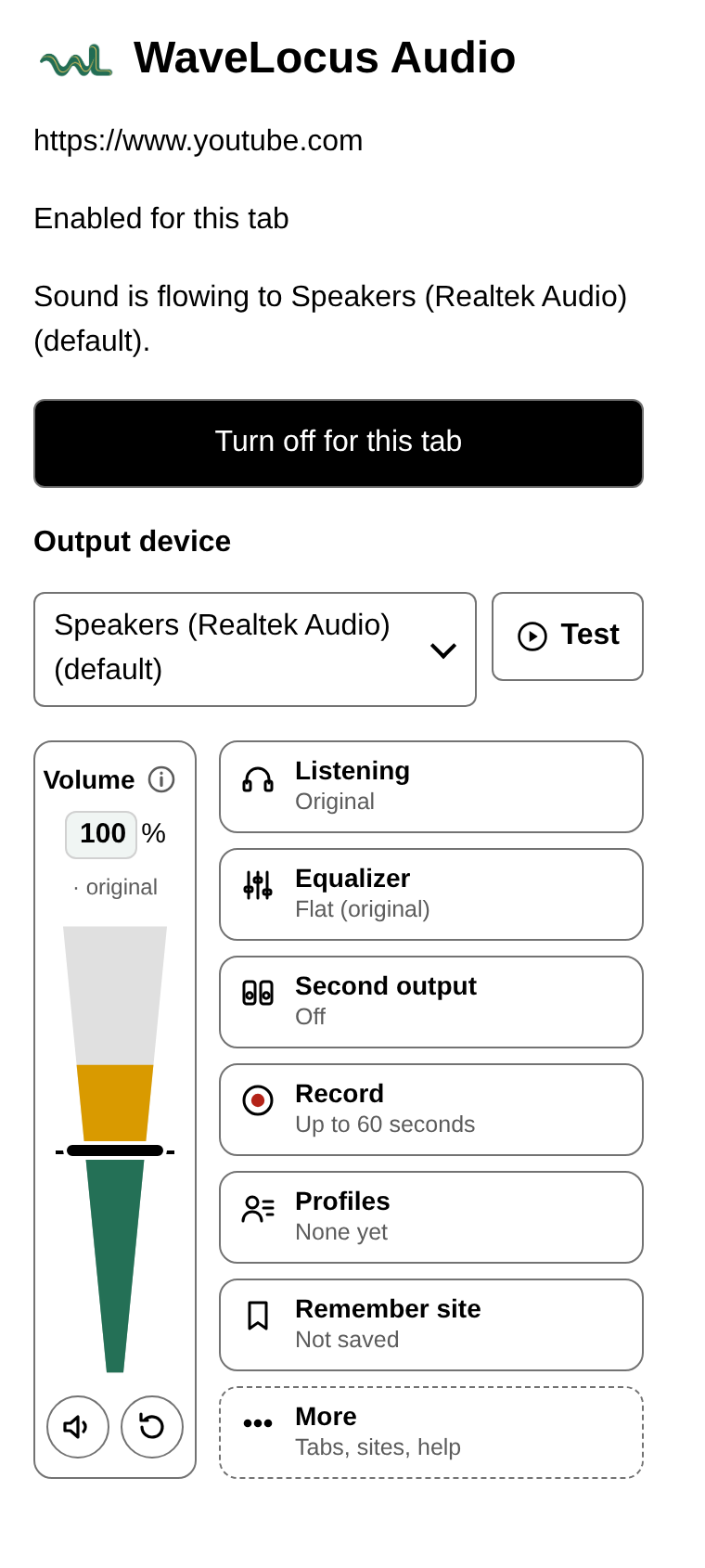
Send a lesson to your headphones while music stays on the speakers. Add a second output for both at once.
WaveLocus Audio for Chrome and Edge
Route a tab's sound to any speaker or headset, boost it, shape it and record it. Everything runs on your computer.
Send a lesson to your headphones while music stays on the speakers. Add a second output for both at once.
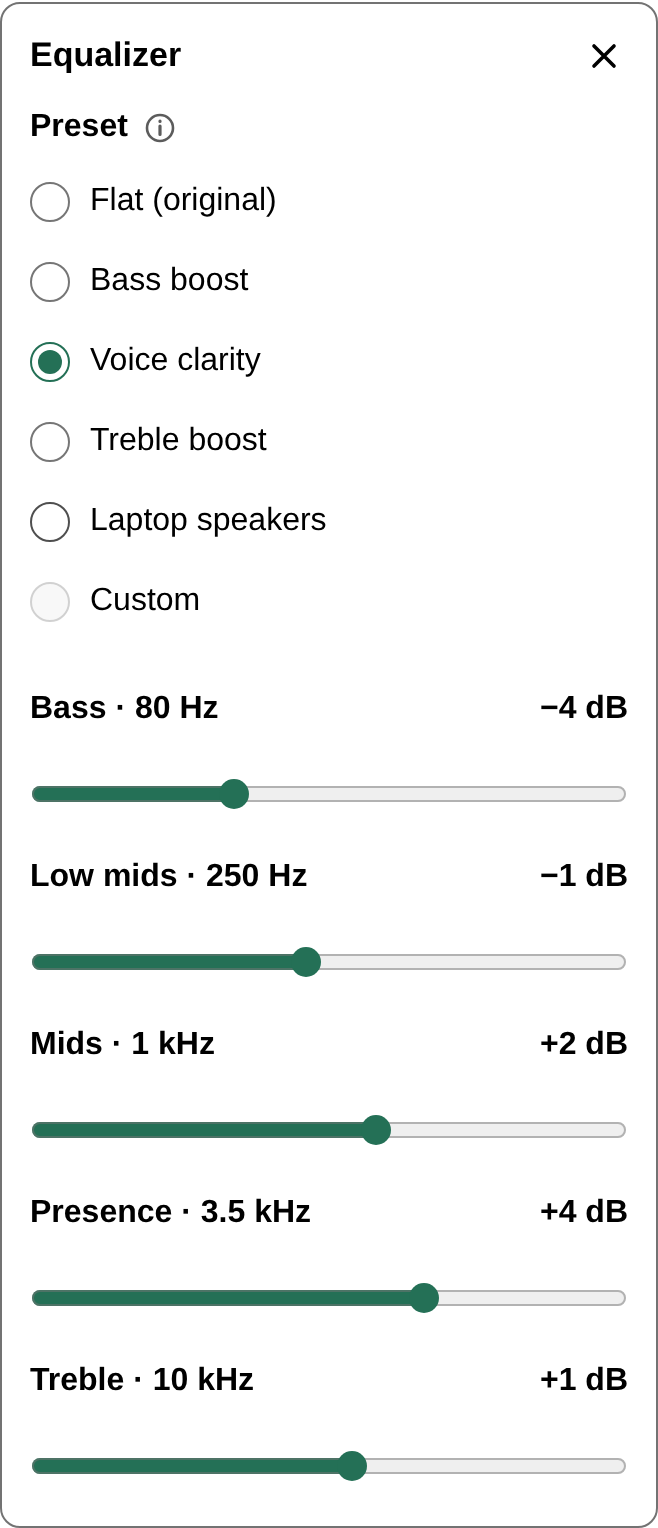
Five bands with presets, night mode, steady loudness between videos and a limiter that catches peaks.
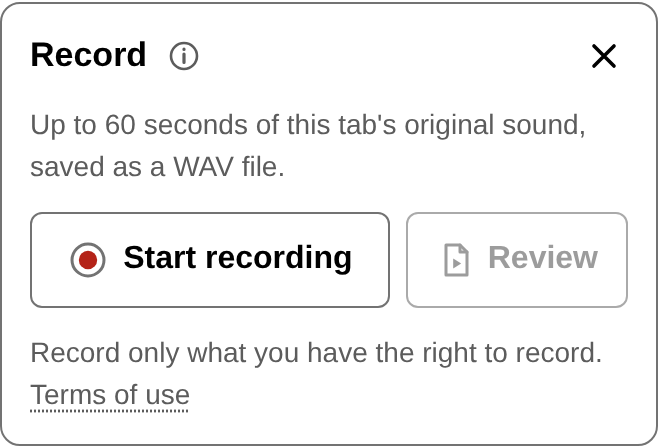
Capture a tab's original sound as a WAV file and check it with the recording level check or ABX test.
The extension is not allowed to make network requests. Tab audio is processed locally, recordings stay in your browser until you delete them, and there is no account or tracking. Read the extension privacy notice.
Install WaveLocus Audio from the Chrome Web Store or Microsoft Edge Add-ons and pin it to the toolbar.
Open the tab that is playing and click the WaveLocus icon. The browser only allows capture after this click.
Choose the output, then set volume, EQ or balance. Turn it off to return to normal playback.
Start with your device volume low. Boost above 100% can be very loud and can harm hearing and equipment.
WaveLocus Audio works in Chrome and Microsoft Edge on Windows, macOS, Linux and ChromeOS. Some protected streams may not allow capture. Record only what you have the right to record; see the terms of use.
Not sure which device is which? Run the headphone test or left and right audio test first. Questions go to support.
Inspect peaks and loud passages in a clip you recorded.
Make a level-adjusted copy of the clip.
Compare two recordings blind.